
NBN Connection Boxes Explained: What to Keep When Moving
A room-by-room guide to identifying NBN equipment, connecting a router, handling missing boxes and leaving the right hardware when moving home.
Sancia PereiraEnergy Markets Analyst
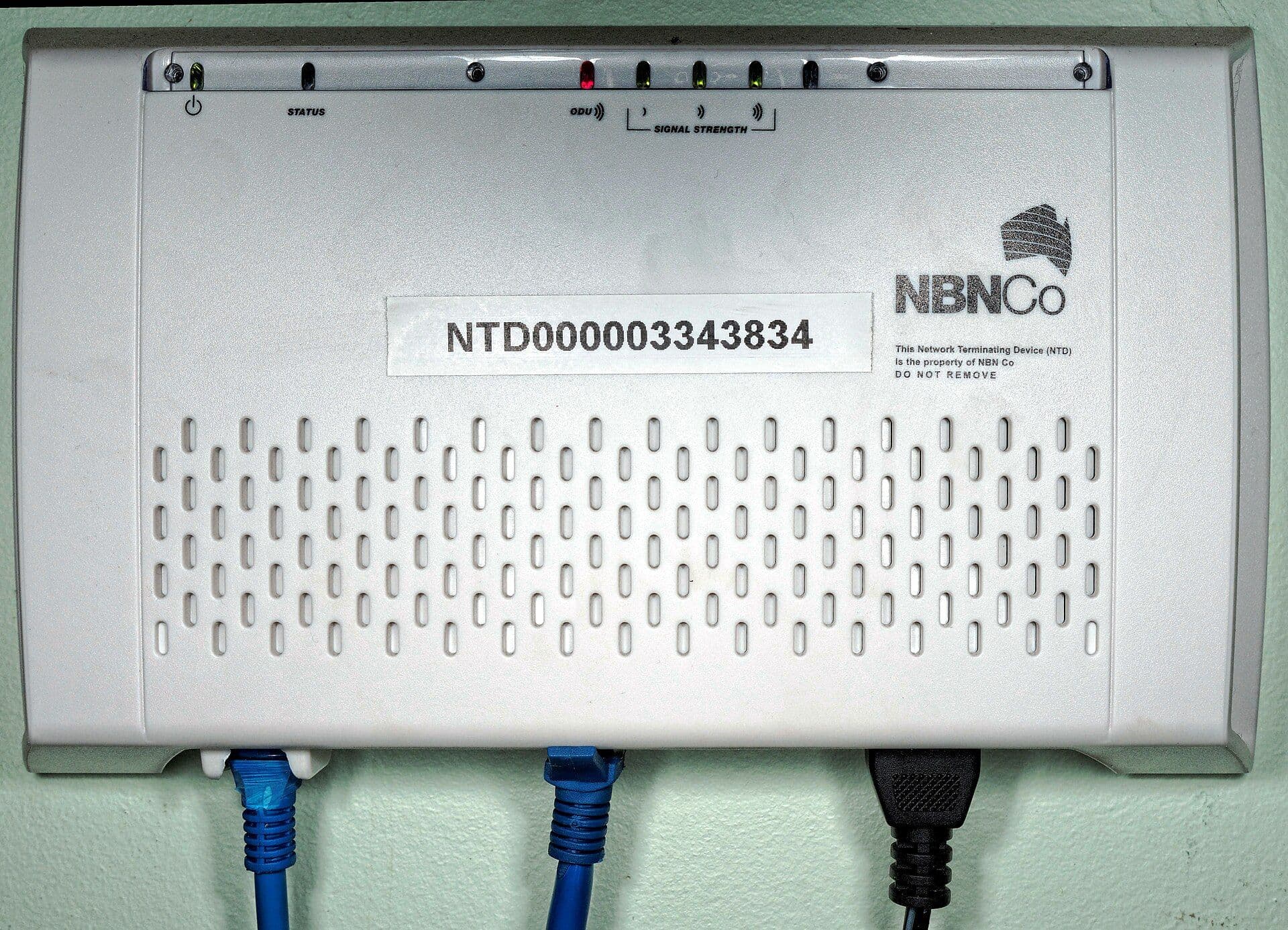
An NBN connection box can mean several different devices. An FTTP premises may have wall-mounted network equipment and a power supply; HFC and FTTC use different connection devices; some fibre-to-the-node services use only a telephone-style wall socket and router. Identifying the access technology prevents incompatible setup, missing-equipment delays and accidental removal during a move.
Quick answer
Check the address and label on the installed equipment before connecting anything. NBN-supplied connection boxes, power supplies, antennas and satellite equipment belong with the premises and should stay when occupants move. Take only the retailer-owned or personally purchased Wi-Fi router unless instructed otherwise. If fixed NBN equipment is missing, contact the new retail provider rather than buying an unverified replacement.
Key points
- Different NBN technologies use different premises equipment and ports.
- NBN equipment stays at the address; a retail Wi-Fi router may move with the account holder.
- FTTP data ports must be activated by the provider before they deliver service.
- Do not reset, open, relocate or rewire fixed network equipment without authorised guidance.
- Photograph labels and cabling before moving or troubleshooting.
NBN connection box, router and wall socket differences
The NBN connection equipment terminates the access network at the premises. A retail router then authenticates or routes the internet service and creates the household Wi-Fi network. Some providers call the router a modem, which adds confusion. On FTTP, the router connects to an active UNI-D port; on HFC it connects to the NBN connection device; on FTTN or FTTB it commonly connects to the nominated telephone wall socket.
NBN's address checker and the retail provider can identify the technology. Labels such as nbn, UNI-D, optical, coaxial or network termination device provide clues, but do not force a cable into a similar-looking port. Power supplies and backup units may form part of the installation and should remain connected as instructed.
| Technology | NBN equipment at home | Router connection |
|---|---|---|
| FTTP | Wall-mounted connection box and power equipment | Activated UNI-D Ethernet port |
| HFC | Coax-connected NBN connection device | Ethernet from connection device |
| FTTC | Small NBN connection device at phone socket | Ethernet from connection device |
| FTTN/FTTB | Often no separate NBN box | DSL port to nominated wall socket |
| Fixed Wireless/Satellite | Outdoor equipment plus indoor connection device | Ethernet from indoor device |
What matters most when comparing your options
Technology at the exact address
Use the official address check and provider order record before selecting cables or a router. Two nearby homes can have different technologies, and an old socket or box may no longer be the active termination.
A useful test is to ask: Which NBN technology and physical port does the accepted order specify? Write the answer down in the same units for every option. That small discipline prevents a prominent headline, introductory discount or theoretical maximum from crowding out the detail that will shape the household's real result.
Ownership of each device
Separate NBN-supplied premises equipment from the retailer router, mesh units and personally purchased accessories. Removing a connection device can interrupt the next occupant and delay the mover because it may not work at the new address.
A useful test is to ask: Is this serial-numbered device assigned to the premises, the provider account or the customer? Write the answer down in the same units for every option. That small discipline prevents a prominent headline, introductory discount or theoretical maximum from crowding out the detail that will shape the household's real result.
Power, lights and cabling
Follow the technology-specific light guide and provider troubleshooting sequence, checking power and cables without opening equipment. Indicator patterns can distinguish a network fault, inactive service, loose cable and router problem more reliably than repeated resets.
A useful test is to ask: Which light first departs from the documented normal state, and what layer does it represent? Write the answer down in the same units for every option. That small discipline prevents a prominent headline, introductory discount or theoretical maximum from crowding out the detail that will shape the household's real result.
New provider activation
Confirm which FTTP port or other interface the new service will use and whether the router needs provider settings. A correctly cabled router can still remain offline if it is connected to the wrong data port or uses incompatible authentication or voice settings.
A useful test is to ask: Has the provider confirmed activation and supplied the exact setup instructions for this router? Write the answer down in the same units for every option. That small discipline prevents a prominent headline, introductory discount or theoretical maximum from crowding out the detail that will shape the household's real result.
What to do before moving out
Photograph the equipment, power supply, wall sockets and cable layout. Leave fixed NBN boxes, power units, outdoor antennas, satellite dishes and their assigned connection devices at the property. Do not remove a fibre box or HFC device because it looks like part of the router setup. Confirm with the retail provider whether its router must be returned, paid out or can move with you.
Arrange disconnection and new-address service through the provider with enough lead time. The new property may use another NBN technology, so the old router's physical port or voice function may not be compatible. Do not assume taking every device preserves connectivity; it can create two incomplete installations instead.
What to do when equipment is missing
If the address checker indicates FTTP, HFC or FTTC and expected equipment is absent, tell the chosen retail provider during the order. NBN instructs customers to work through providers, which can arrange replacement equipment or an appointment where required. Online marketplace devices can be assigned, obsolete or unsafe and should not be treated as a standard solution.
Check cupboards, garages and utility areas before declaring equipment missing, especially in apartments or newer homes. Ask the landlord, agent or previous occupant for any handover notes but do not delay provider notification where activation is time-sensitive. Record the condition at entry for tenancy purposes.
Safe troubleshooting after activation
Start at the network boundary: verify power and documented connection-box lights, then the Ethernet or DSL cable, then the router internet light, then one wired device. Restart only in the provider's recommended order and allow each unit time to reconnect. This sequence prevents a weak Wi-Fi signal from being mistaken for an NBN activation fault.
Do not look into fibre connectors, open NBN equipment or alter external antennas and cabling. Report damage, heat, burning smell, exposed wiring or water ingress and disconnect power only where it is safe to follow emergency guidance. For ordinary faults, the retail provider is the first support contact even when the box carries the NBN logo.
Which option suits which household?
There is no universally best choice. The stronger option is the one that fits the household's location, equipment, usage pattern, appetite for complexity and likely behaviour after any introductory period. These scenarios are a decision aid, not a product ranking.
| Household or situation | Likely starting point | Why |
|---|---|---|
| Mover leaving an FTTP home | Leave all NBN wall equipment | The connection box and power components are premises infrastructure. |
| New HFC occupant with no device | Contact the new provider | The provider can arrange the correct assigned equipment. |
| FTTN home with no visible box | Find nominated wall socket | A separate connection device may not be used for that technology. |
| Switching provider on FTTP | Confirm active UNI-D port | A new service may be activated on a different data port. |
A practical comparison process
Use the same assumptions for every option and keep a copy of the plan summary, Critical Information Summary or offer terms you relied on. Online prices and eligibility settings change; a dated record makes it much easier to check the first bill or challenge a mismatch.
- Check the address's NBN technology and order status.
- Identify and photograph NBN equipment, retailer router and cabling.
- Follow the provider's technology-specific connection instructions.
- Test power and indicator lights before changing Wi-Fi settings.
- Report missing or damaged NBN equipment to the retail provider.
- Leave premises equipment behind and confirm router return terms when moving.
Common mistakes to avoid
- Taking the NBN box to a new home.
- Buying a second-hand connection device before speaking to a provider.
- Plugging an FTTP router into the wrong UNI-D port.
- Resetting equipment repeatedly before recording light status.
- Treating weak Wi-Fi in one room as proof the NBN box is faulty.
The comparison should end with a defensible household decision, not the longest feature list. Recheck one-off costs, ongoing charges, speed or export constraints, cancellation conditions and what happens after a promotion. When two options remain close, favour the one whose conditions you understand and can realistically manage.
Bottom line
Treat the NBN connection box as part of the address and the Wi-Fi router as part of the retail service. Identify the technology, follow the provider's port instructions and leave network equipment in place when moving. NBN's connection box guide provides current diagrams; compare service options on internet plans.
Related CompareUs resources
Sources and editorial method
CompareUs reviewed current Australian regulator, government, network and provider material available on 28 July 2026. Product examples are included to explain how offers work, not as an endorsement or a permanent price promise. Check the provider's current terms and your address-specific eligibility before acting.
- nbn — Understanding your connection box — technology-specific equipment and moving instructions
- nbn — Moving home — address checks and moving process
- ACMA — Choosing the right product or plan — Critical Information Summaries and plan comparison
Where should you go next?
FAQs
Should I take the NBN box when I move?
No. NBN-supplied connection equipment stays at the premises. Confirm separately whether the retail Wi-Fi router is yours to take or return.
Why does my home not have an NBN connection box?
FTTN and some FTTB services commonly connect a compatible router to a wall socket without a separate indoor NBN box.
Can I buy a replacement NBN box online?
Contact your retail provider. Connection devices can be assigned to premises or require provider activation, so an online purchase may not work.
Which FTTP UNI-D port should I use?
Use the port your retail provider confirms as active. It may not always be UNI-D 1.
Can I move an NBN connection box to another room?
Do not relocate fixed equipment yourself. Ask the provider about an authorised relocation and possible charges.
Who fixes an NBN connection box fault?
Contact the retail provider first. It can troubleshoot and escalate an NBN network or equipment fault.